How Meeting Sharing Works in Optiverse
A clear guide to access, email summaries, and sharing controls
Optiverse is designed to make meeting knowledge easy to access, without forcing you to manually share every recording.
That power, however, comes with a few concepts that are important to understand clearly.
This article explains how meeting access, email summaries, and sharing settings work together, so you always know:
Who can see a meeting recording
Why someone may have access even if they didn’t receive an email
How to fully restrict access when needed
1. First Things First: Email ≠ Access
One of the most common misunderstandings is assuming that email delivery controls access.
In Optiverse, this is not the case.
Email summaries are notifications, not permissions.
Email summaries are sent once, after a meeting is recorded
They are delivered based on your Email Recap settings
Not receiving an email does not mean someone cannot access the recording

It is entirely possible for someone to:
Attend a meeting
Be recorded
Not receive an email
Still have legitimate access to the recording later
This is by design.
2. Who Is Who in Optiverse?
To understand sharing, it helps to clarify roles:
Optiverse user
Someone with an Optiverse account who has connected their calendar and uses the AI meeting assistant.Organization / Workspace
A shared Optiverse environment where multiple users collaborate.Organization member
An Optiverse user who belongs to your workspace.Guest
Someone without an Optiverse account who was invited to a meeting and may receive access to the recording.
3. How Baseline Access to Recordings Works
When the Optiverse AI meeting assistant successfully joins and records a meeting:
Baseline access is determined by:
Who was invited on the calendar
Whether guest access is enabled
Whether future users are allowed
Organization-wide policies (which always override personal settings)
Important implications:
Accepting or declining the calendar invite does not matter
What matters is whether the email address was invited
Access is identity-based, not email-based
4. “I Didn’t Get the Email, But I Can See the Recording” — Why This Happens
This is one of the most common support questions.
If someone was invited to a meeting:
They may later create an Optiverse account using the same email
Optiverse recognizes them as a legitimate attendee
Past recordings become visible to them
Want to prevent this?
You can disable Future Users in your settings.

When turned off:
Guests who do not yet have an Optiverse account will not gain access later
Even if they were invited at the time of the meeting
This setting applies across all recordings and can be changed at any time.
5. Guest Access and “Public” Recordings
By default, meeting recordings can be accessed by guests via secure links.
This is controlled by Guest Access (organization-wide).

Guest Access ON
Guests can view recordings
Public links are available
Access is convenient for external collaboration
Guest Access OFF
No public links exist
Guests cannot access recordings
Only explicitly listed users and organization members can view them
If you want email delivery to be the only way guests receive access, Guest Access should be turned off.
6. Auto-Sharing: Adding Access on Top
Auto-sharing is an optional layer, not a permission system.
It allows you to automatically share recordings with:
Selected users
Your entire organization
Coaches or managers who didn’t attend the meeting
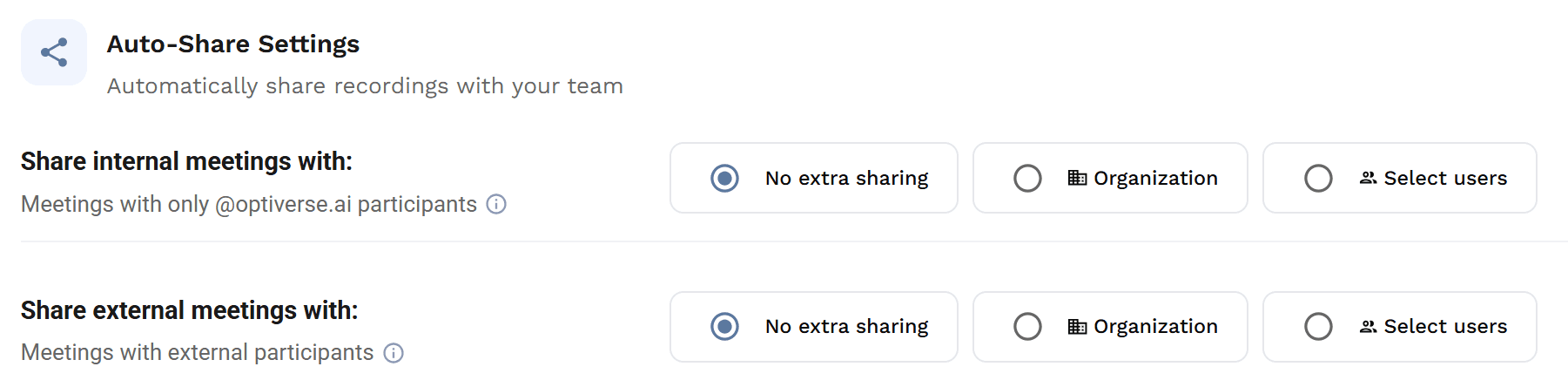
You can:
Treat internal and external meetings differently
Enable or disable this at any time
Auto-sharing never removes access, it only adds it.
7. Full Transparency on Every Recording
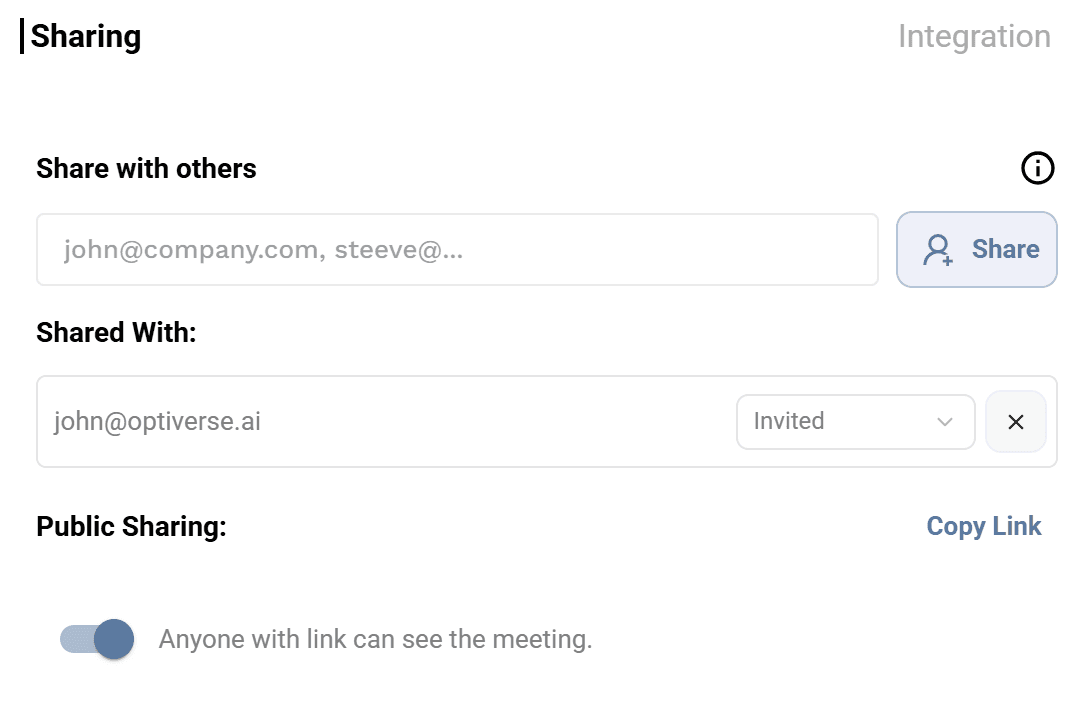
Every meeting recording in Optiverse works like a document in a shared drive.
For each recording, you can:
Open the Share panel
See exactly which email addresses have access
Check whether a public link exists
Manually adjust access if needed
If Guest Access is disabled, public links are removed automatically.
8. Recording Awareness and Consent
Optiverse takes transparency seriously:
The AI meeting assistant announces itself in the meeting chat
Participants are informed that the meeting is being recorded
Meeting hosts remain responsible for:
Verbal disclosure if required by local regulations
Ensuring participants are comfortable with recording
We advise Optiverse Users to ask for consent to record by framing value, this goes a long way: "Is it okay if I let this AI Meeting assistant record and take the notes for us so tht we can fully focus on this conversation? "
9. A Simple Way to Think About It
If you remember just one thing, remember this:
Emails notify.
Settings control access.
Auto-sharing adds visibility.
Once this mental model is clear, Optiverse’s sharing behavior becomes predictable and easy to manage.
Questions or Feedback?
If anything still feels unclear, our team is always happy to help (contact@optiverse.ai), and we continuously improve the platform to make these concepts even more intuitive.
Verfasst von:

Mario Assaf
Mitgründer
Starten Sie noch heute Ihre 14-tägige kostenlose Testversion!
Melden Sie sich jetzt an, um die leistungsstarken Funktionen von Optiverse kennenzulernen und zu sehen, wie es Ihren Meeting-Workflow mit KI optimieren kann.